
Trial
Try the Standalone Edition on Windows without obligation.
EUR 0 trial
- download via Microsoft Store
- test with your own images and videos
- purchase the license through WALTRONE after the trial
Show offers, notices, images, videos, QR codes, room bookings, interactive content and internal information on TVs, monitors, touchscreens or kiosks. Standalone is designed for one local setup; Network centrally controls multiple players on the local network.
Download the Standalone trial from the Microsoft Store. The permanent license is purchased through WALTRONE. No monthly software fee.
Try for 30 days, then purchase the appropriate license through WALTRONE. Standalone for one local setup, Network for multiple centrally managed players.
Try the Standalone Edition on Windows without obligation.
For one Windows computer with a local player – e.g. shop window, reception, studio or information display.
Important: The Microsoft Store is used to download the Standalone version. The permanent license is purchased and provided separately by WALTRONE.
For multiple displays and areas with central management on the local network.
What is a player? A player is a Windows computer or Agent that plays content on a display. An administration-only server does not count; local playback on the server and each active Agent count as one player.
The first 3 players are included. After that, the regular price is EUR 49 per additional player. Larger quantities are quoted individually.
* VAT is not charged or shown under the German small-business scheme (§ 19 UStG).
Both editions follow the same WALTRONE concept – the main difference is the number of players and central management.
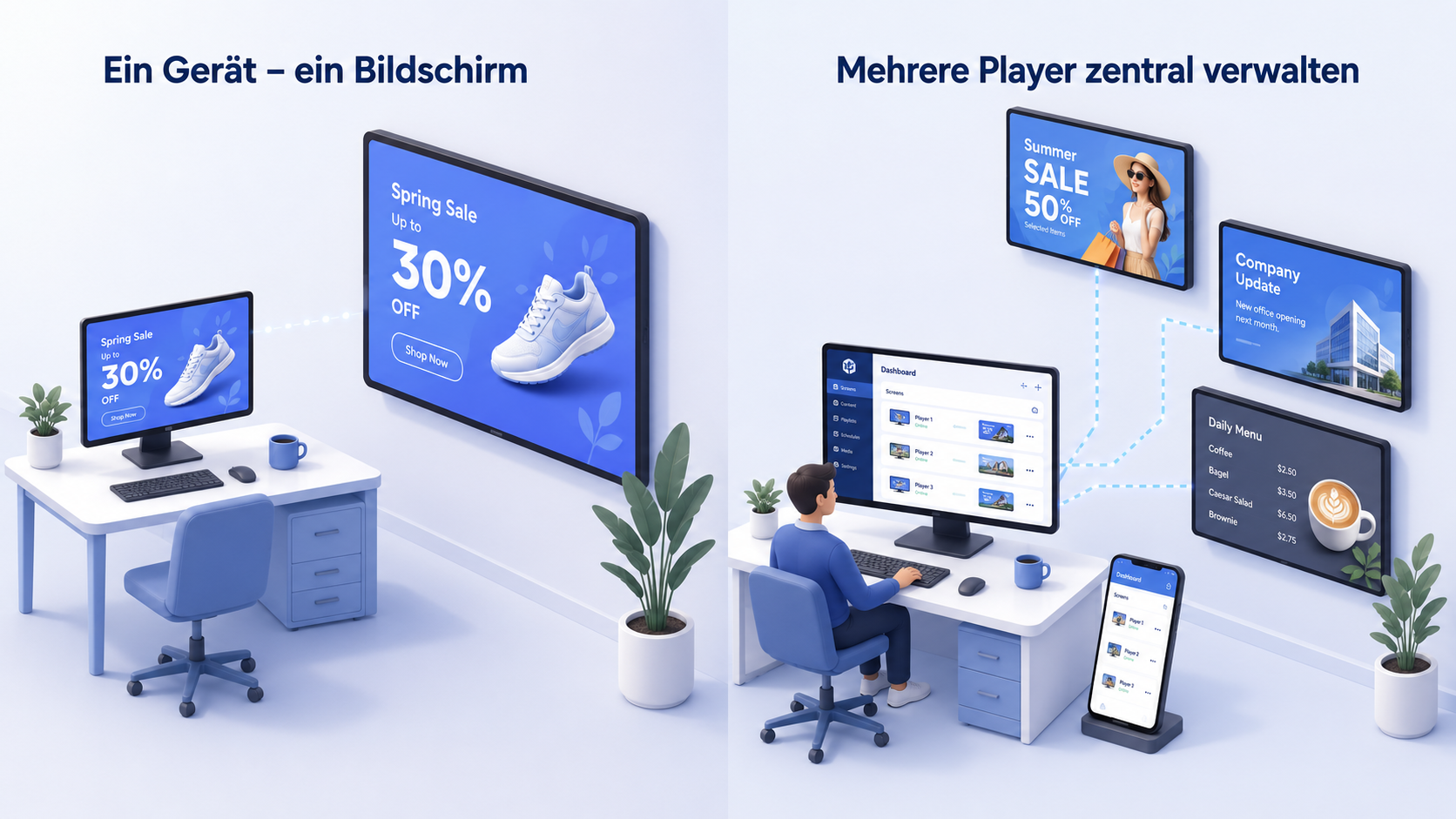
Standalone for one local player. Network for multiple players, separate content, central control, smartphone functions and connected Agents.
| Area | Standalone Edition | Network Edition |
|---|---|---|
| Price | EUR 99 one-time* | EUR 249 one-time* · 3 players included |
| Players | one local setup | 3 included · additional players normally EUR 49 one-time |
| Management | directly on the local Windows system | multiple players centrally on the local network |
| Agents | not designed as a multi-player system | each active Agent counts as one player |
| Smartphone | local operation and enabled functions | remote control, upload and central player control |
| Purchase | through WALTRONE · PayPal or bank transfer | by request through WALTRONE |
The page explains the outcome first: what visitors see, who can operate it and which edition fits the use case.
Display promotions, prices, menus or seasonal notices in a shop, waiting area or showroom.
Use the Standalone Edition to start one setup quickly and smoothly.
Use the Network Edition to prepare, name and supply multiple players with different content.
Upload content or control a player like a remote – practical for on-site teams.
The examples speak to concrete target groups and make the everyday value clear.
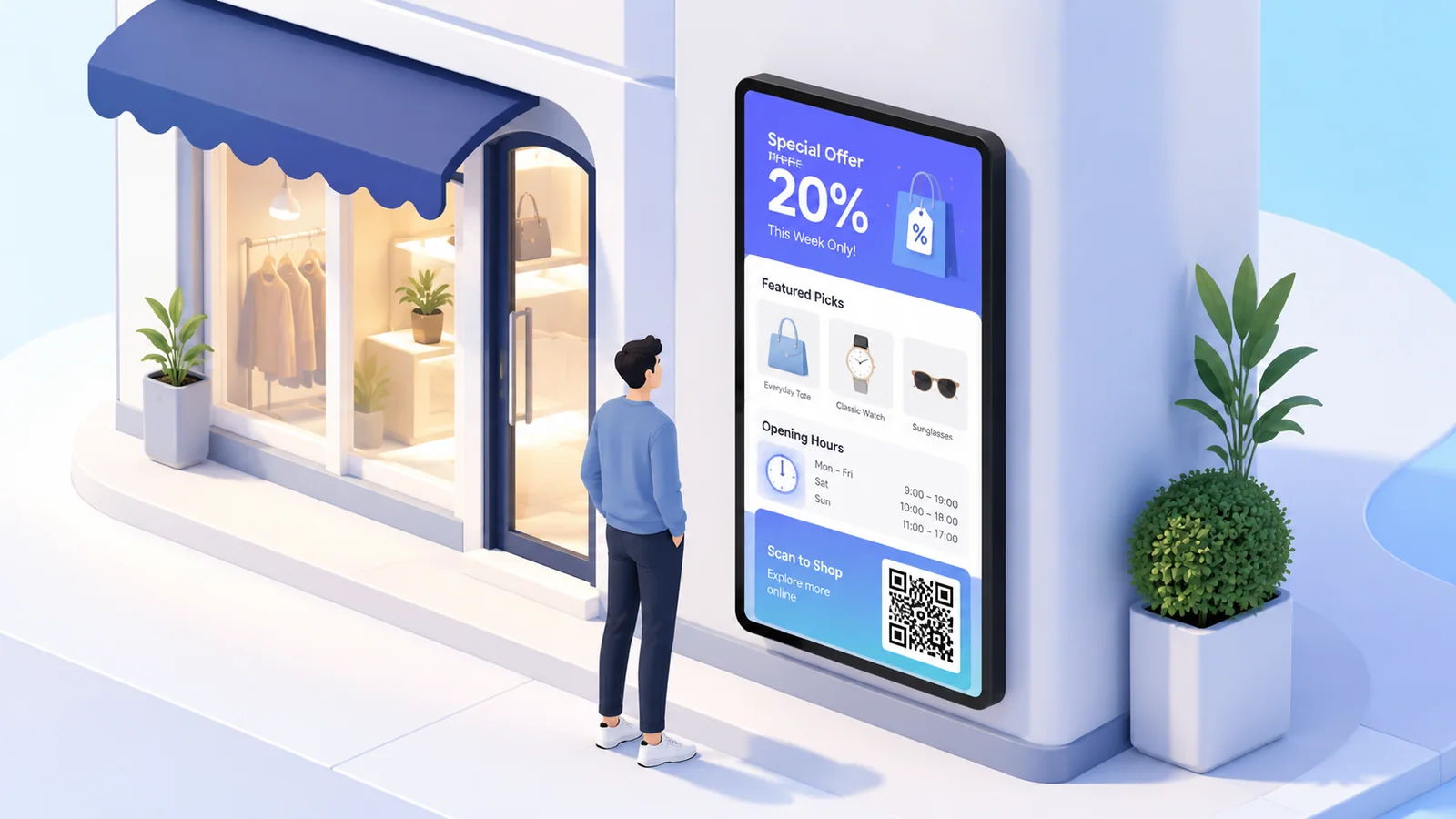
Make offers, opening hours, promotions and QR codes visible.
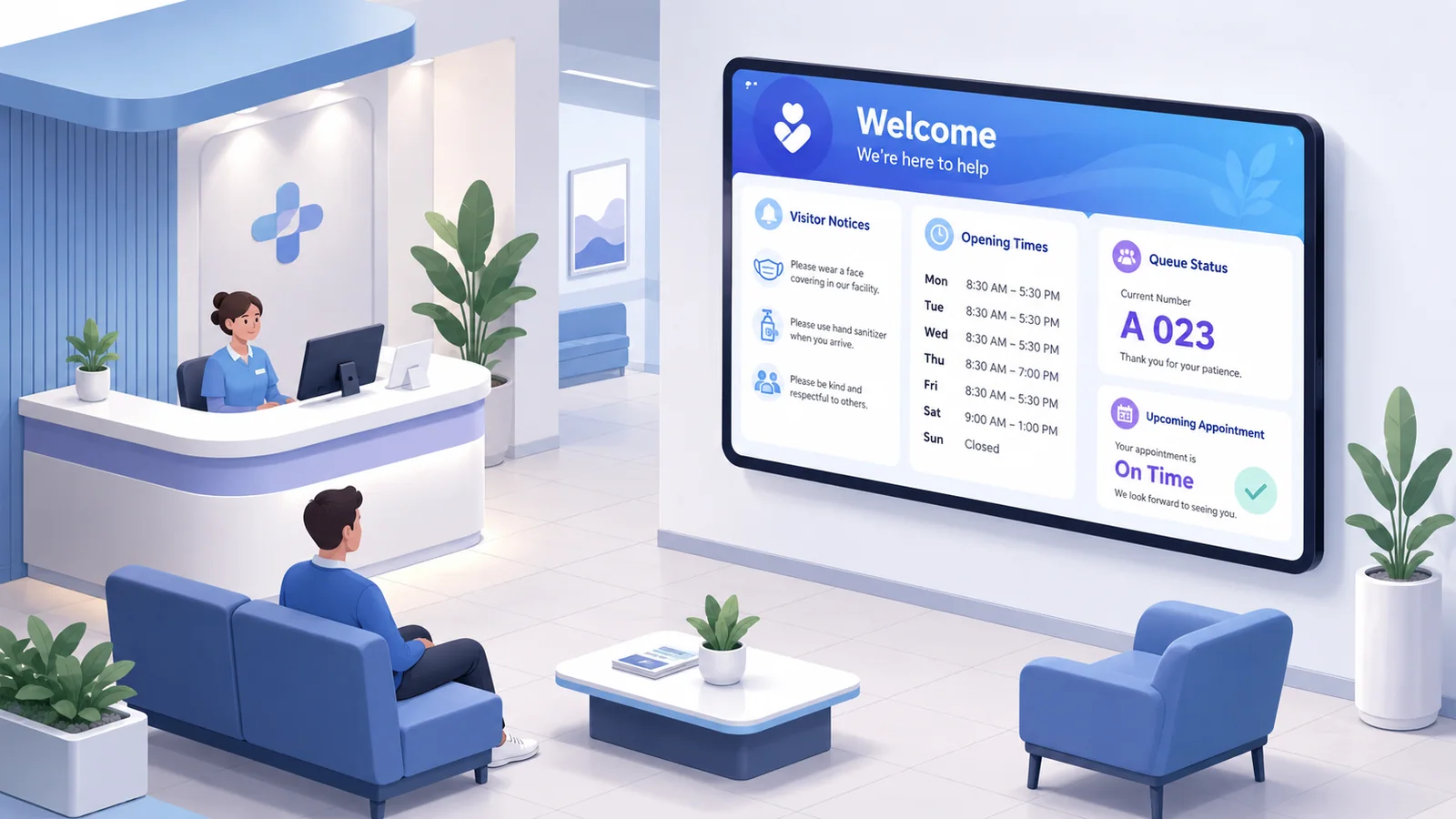
Welcome visitors, show notices and explain processes.
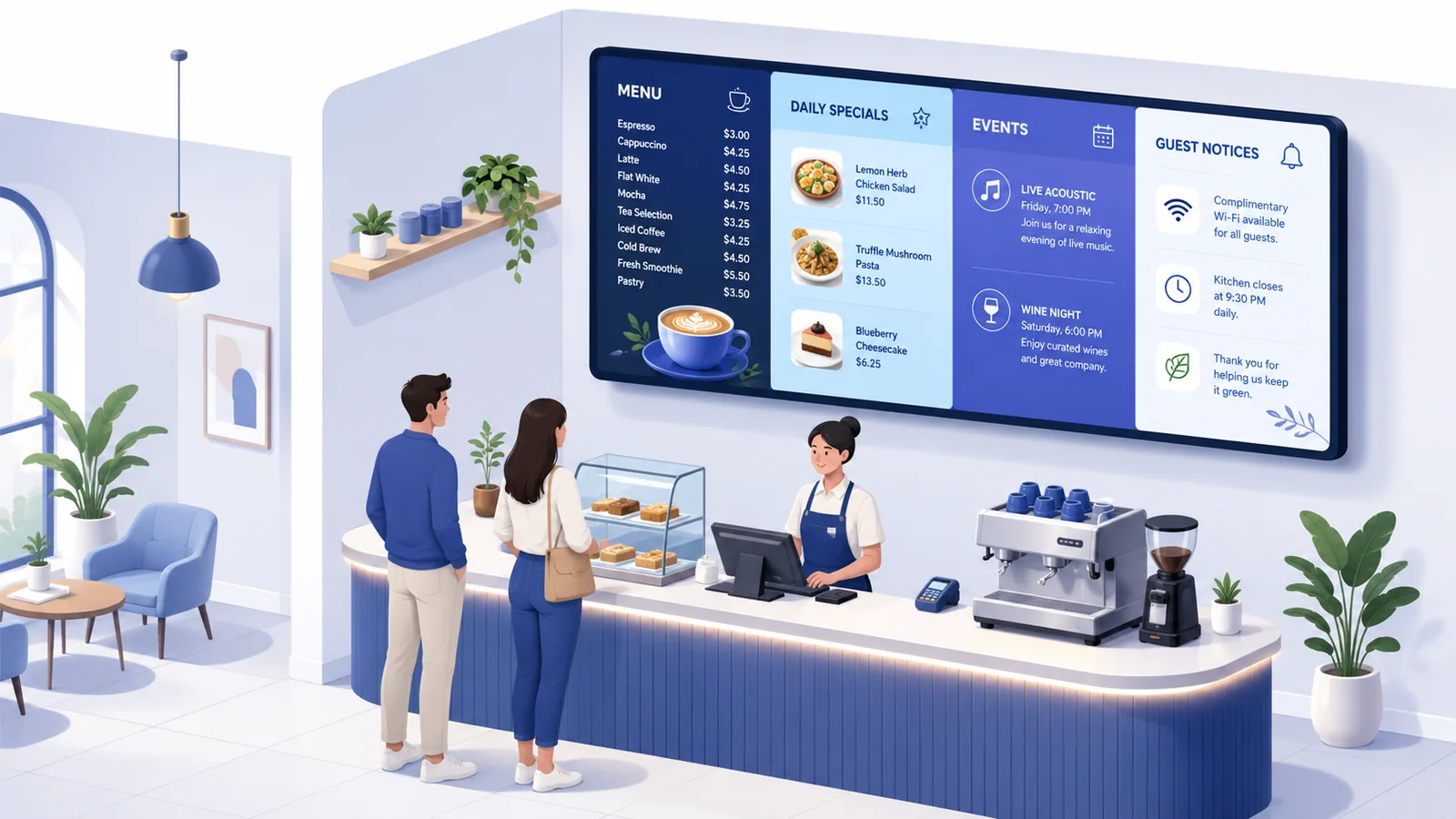
Present menus, specials, events and guest information.
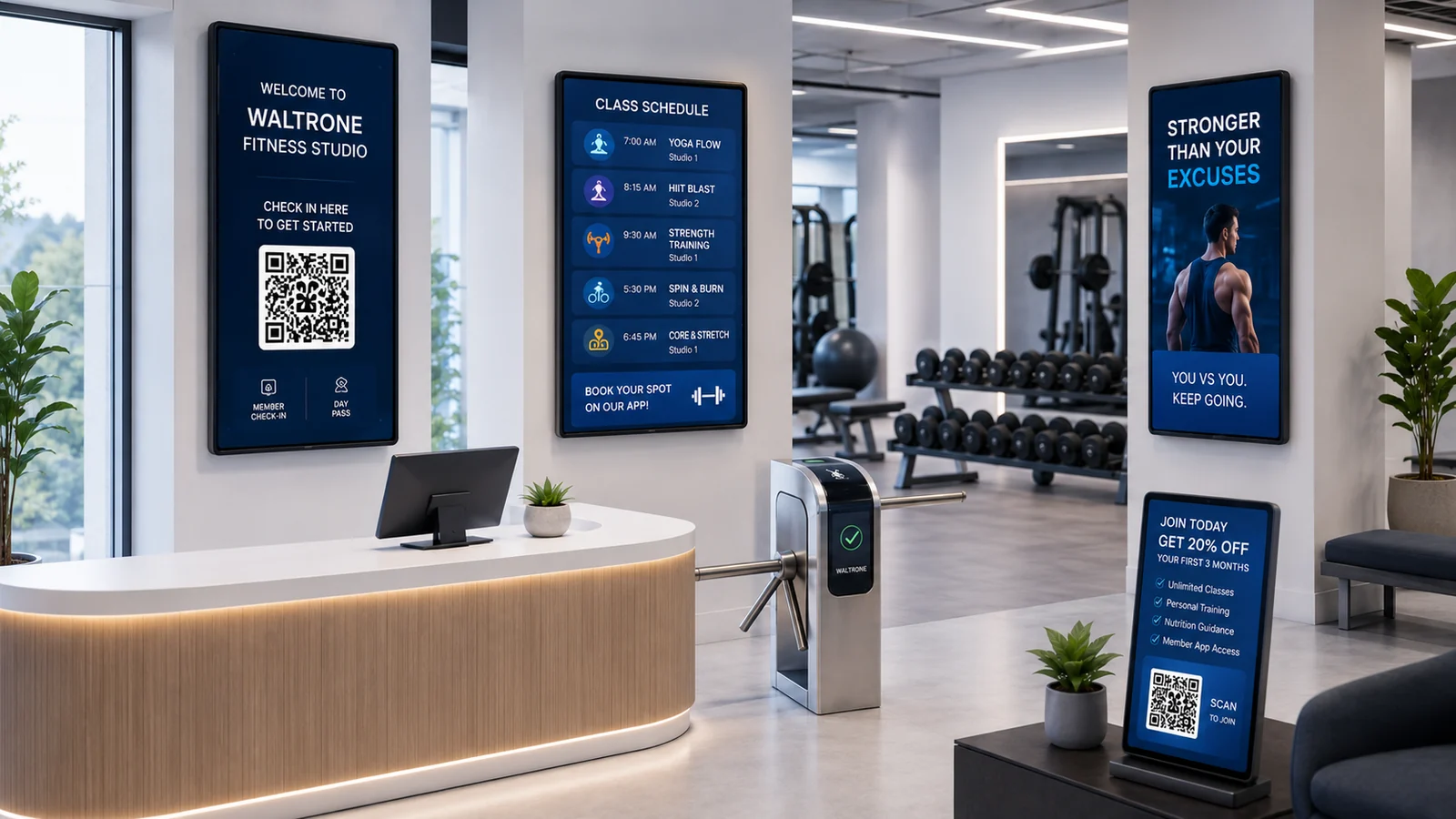
Show schedules, promotions, motivation and QR codes.
Show opening hours, process notes and patient information.
Make events, training times and room notes visible.
Show internal messages, shift notes, status information or visitor details.
Provide countdowns, schedules, QR codes and product presentations.
Choose content, assemble the display and start the player – without an unnecessarily complicated workflow.
Add images, videos, notices, offers, menus or QR codes in the interface.
Define playlists, schedules, widgets or the target screens.
The Windows PC or mini PC plays the content locally on the display.
From themes and menu boards to the media library, Design Boards, schedules, Interact, voting and remote control – the key areas work together in one system.
Organize images, videos and other content in virtual folders and subfolders, then assign it to playlists, fallbacks, Interact or Design Boards.
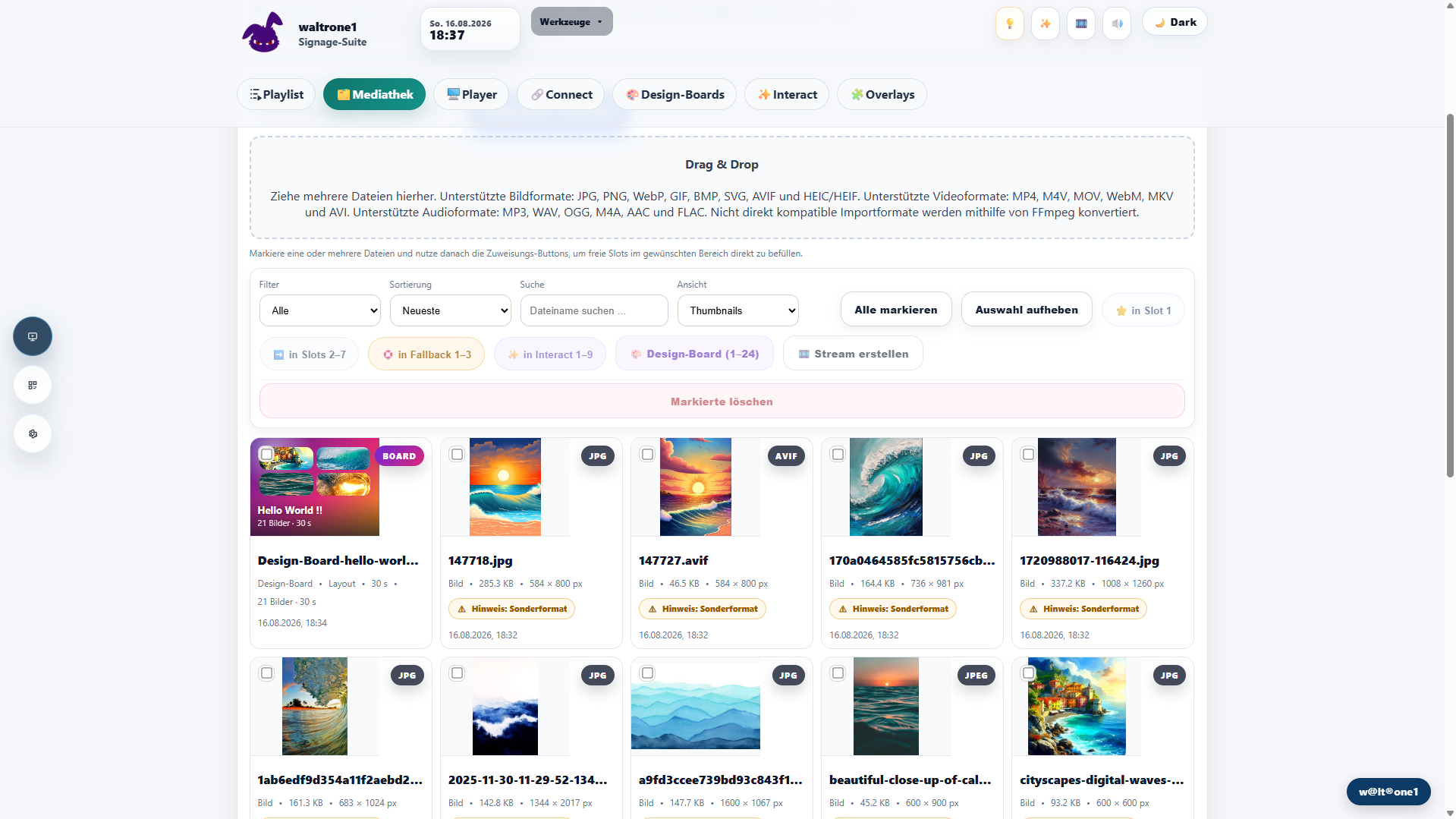
Select a layout, combine media and create a finished screen. The Design Board can then be used like normal content.

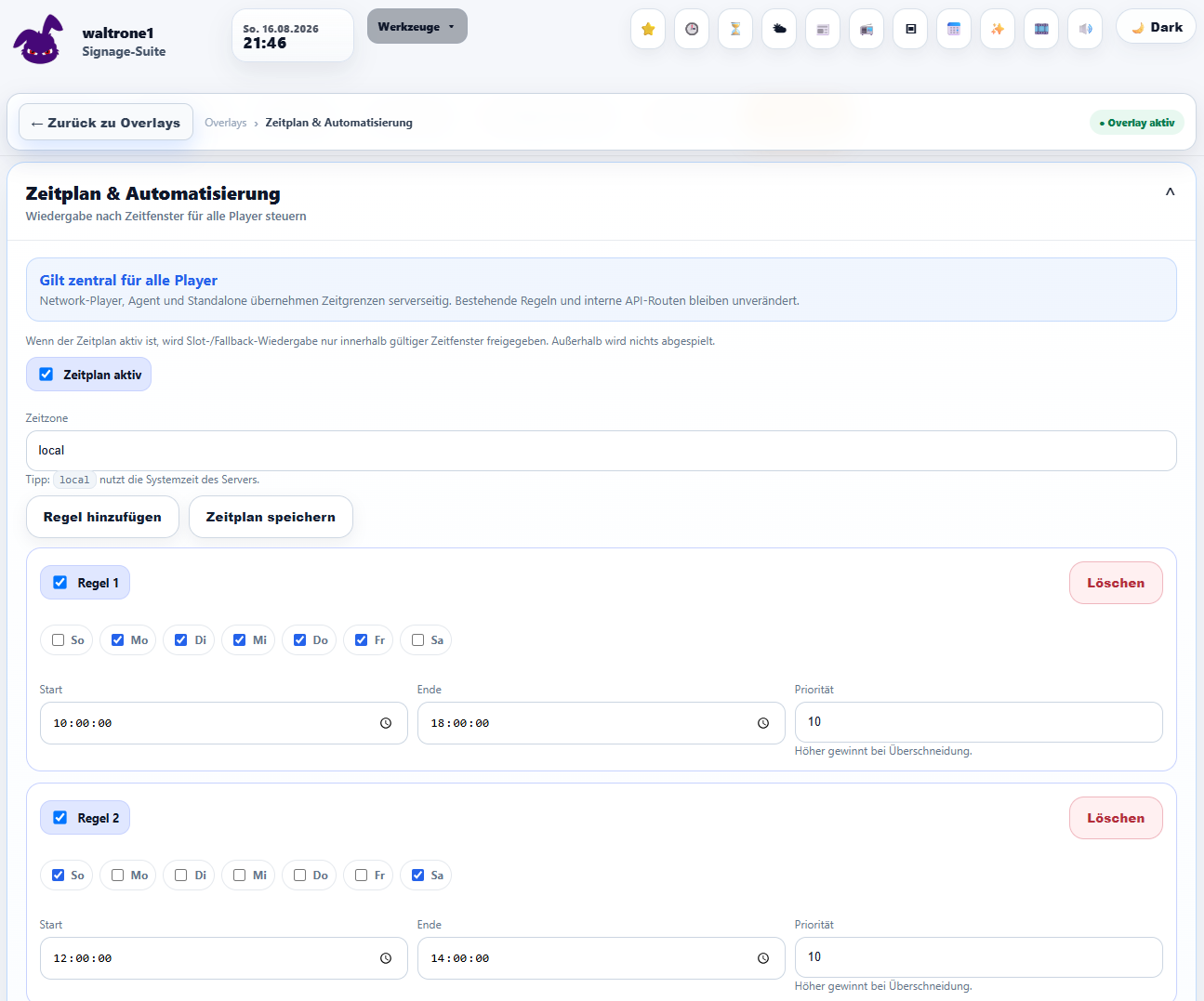
Define rules for days, times and players so displays can change automatically for opening hours, campaigns or recurring workflows.
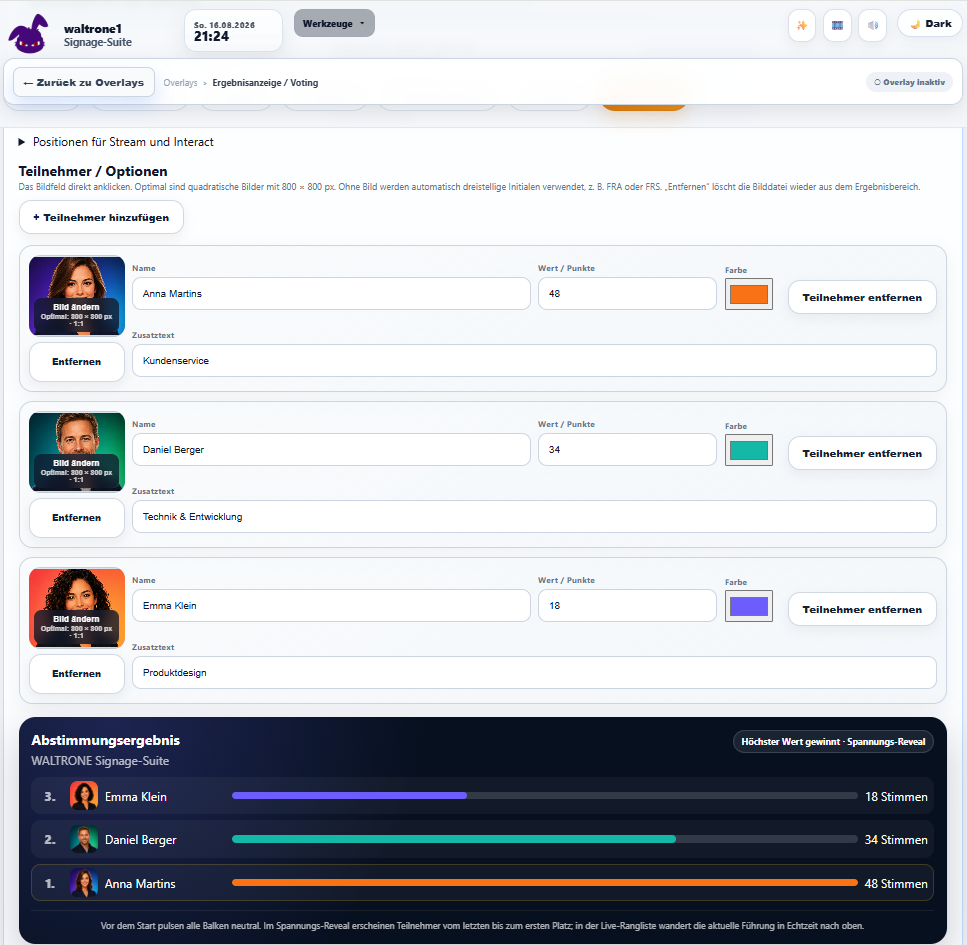
Configure participants and presentation, then visualize results for the display.
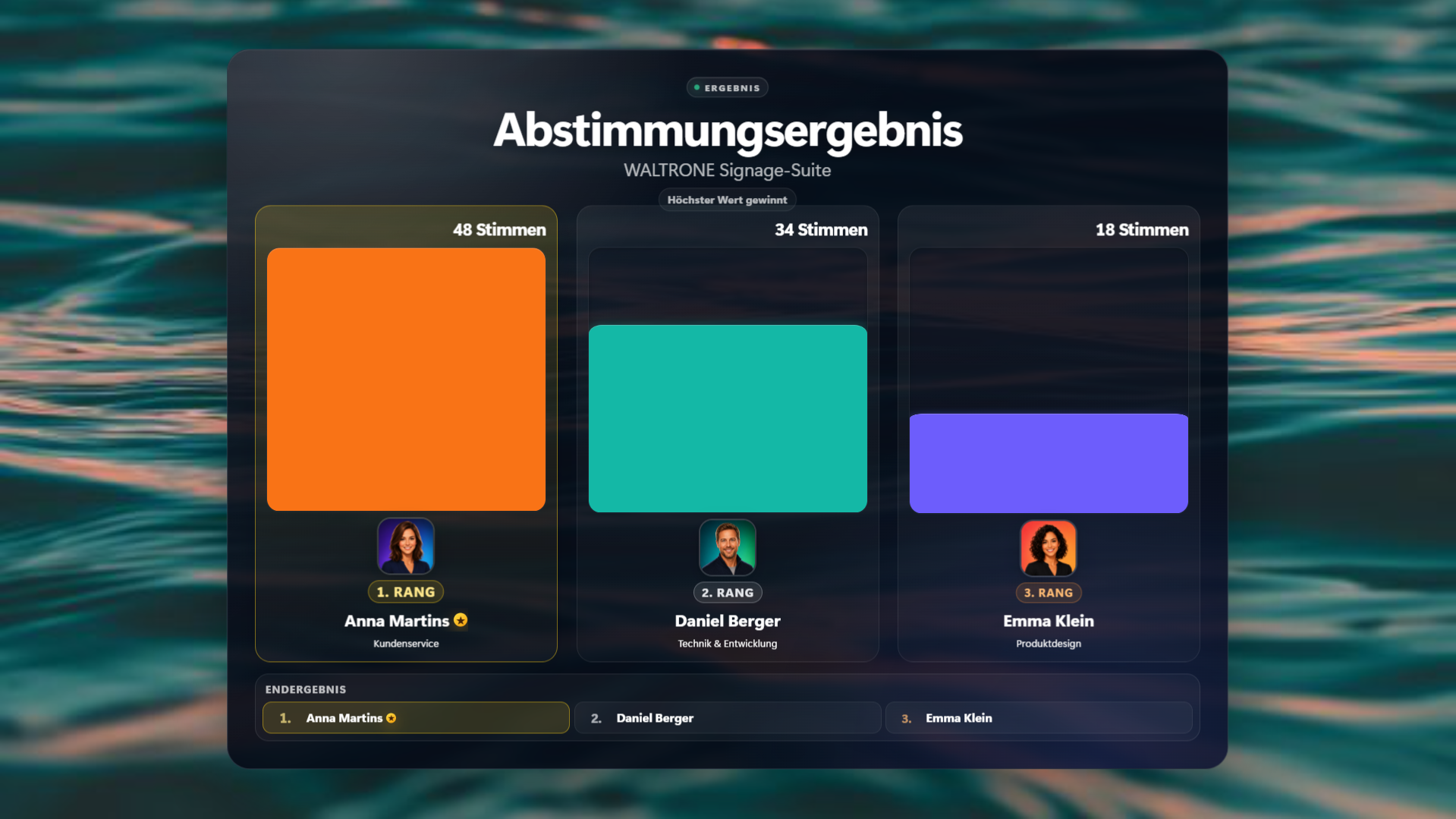
Present results as an attractive display for votes, events or internal activities.
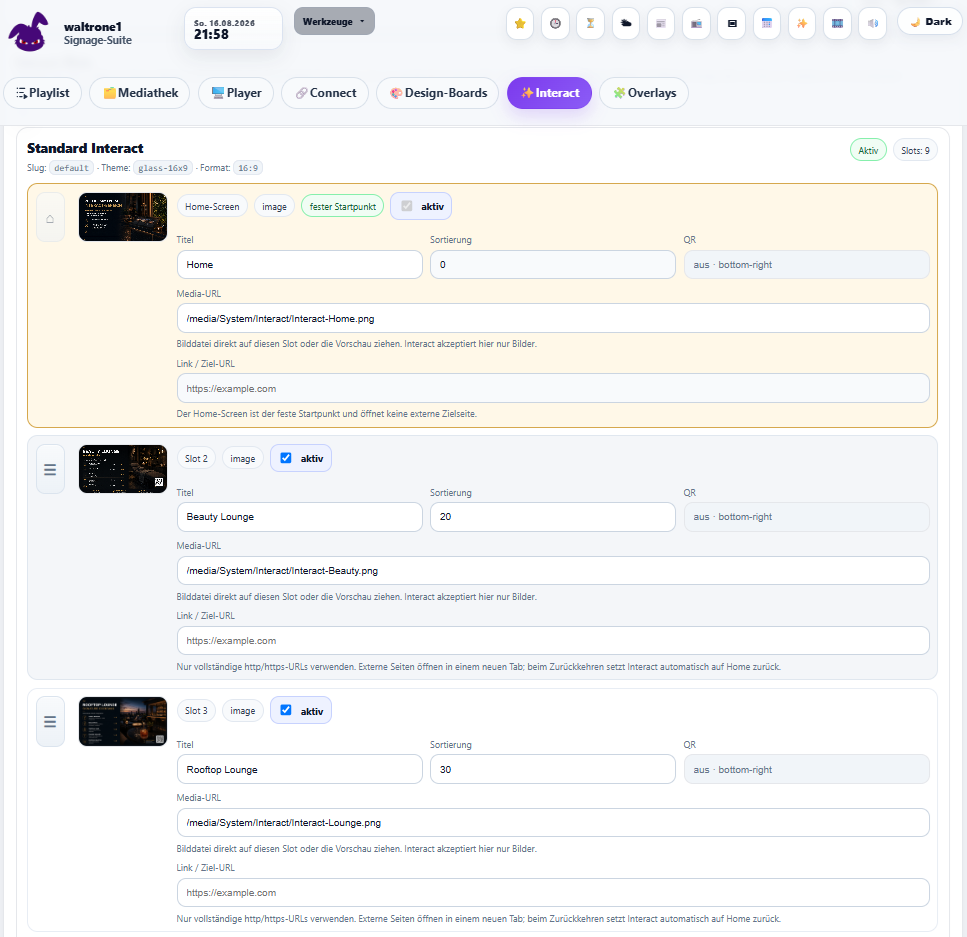
Prepare touch and navigation content for galleries, information, offers or custom workflows.
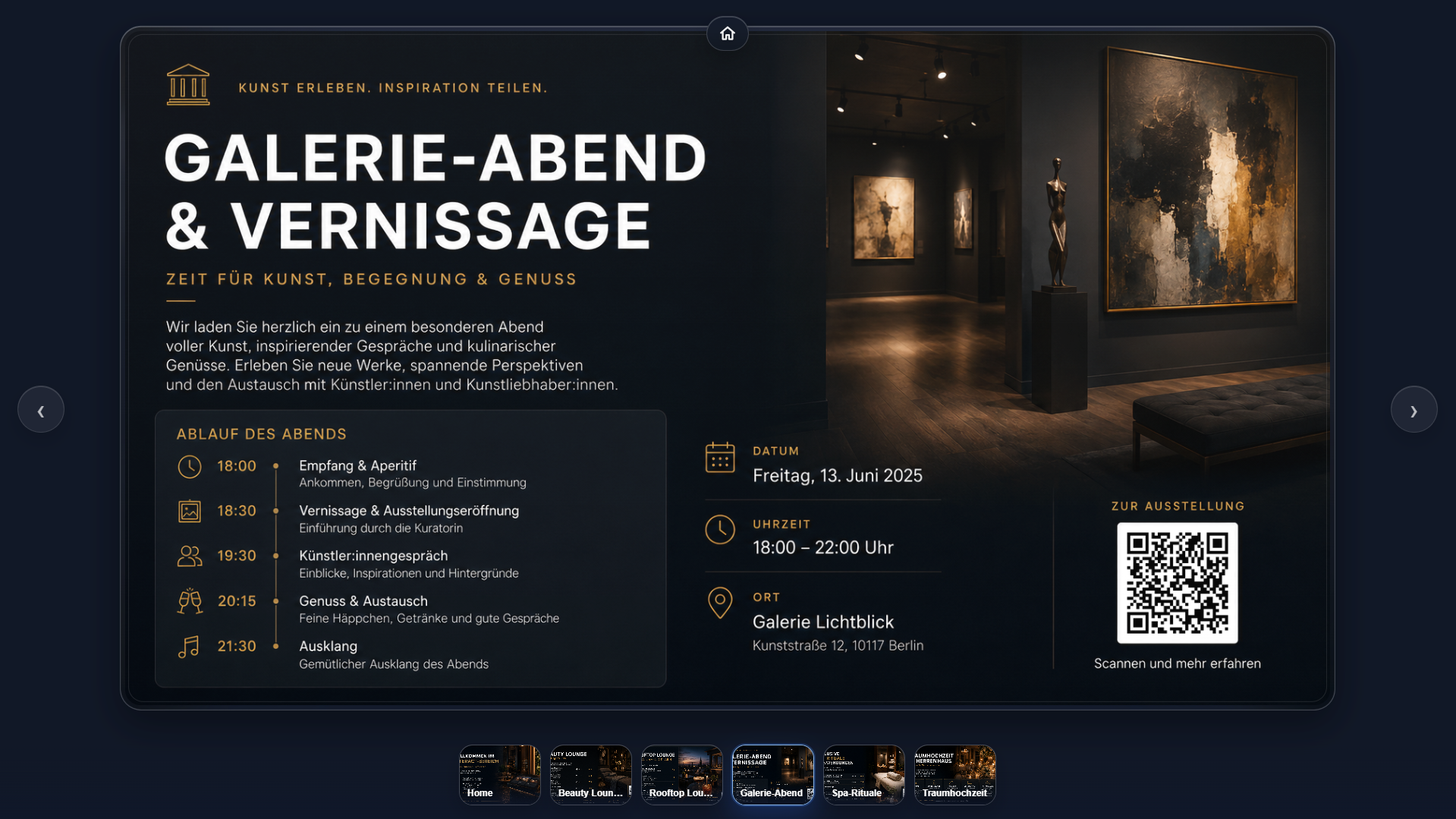
Configured Interact content appears as a complete, usable display view.
Media library, playlists, overlays, fallbacks, Design Boards, Interact, schedules and player control work together in one interface.
Organize images, videos and offers with folders, favorites, search and trash, then deliver them to the right displays.
In the Network Edition, multiple screens can be prepared and supplied with targeted content.
Depending on the setup, authorized people can upload content directly from a smartphone.
Control a player by phone – for example start/pause, next content, sound or screen blackout.
Count down events or promotions and then start a notice, sound, medium or YouTube link.
Make menus, websites, forms or campaigns directly scannable.
Add extra information as a widget on the display.
The interface can be used in two languages – practical for teams and international guests.
Choose stations or your own streams per player. Volume, mute and audio priority can be adjusted to match the display.
Show weather, time, QR codes, notices or countdowns on selected players and position overlays visually with the screen positioner and anchor points.
Media can be stored locally. Autostart, kiosk mode and controlled behavior during connection issues support fixed installations.
Assign separate content to reception, cafeteria, sales floor or production and manage multiple players clearly.
Edit professional layouts live, maintain prices and offers, and import larger content sets via CSV/TXT.
Optionally read text aloud and show subtitles as full text, section by section or with live highlighting.
Show multilingual greetings as an elegant overlay – once or, when enabled, in a continuous loop.
Show snow, rain, confetti, glitter, balloons, hearts, stars or autumn as live effects over running content.
A clear workflow from the room overview and room presentation to central playlist administration and player control.
Start with an overview of all rooms, configure each room and then compare the three room-status views.
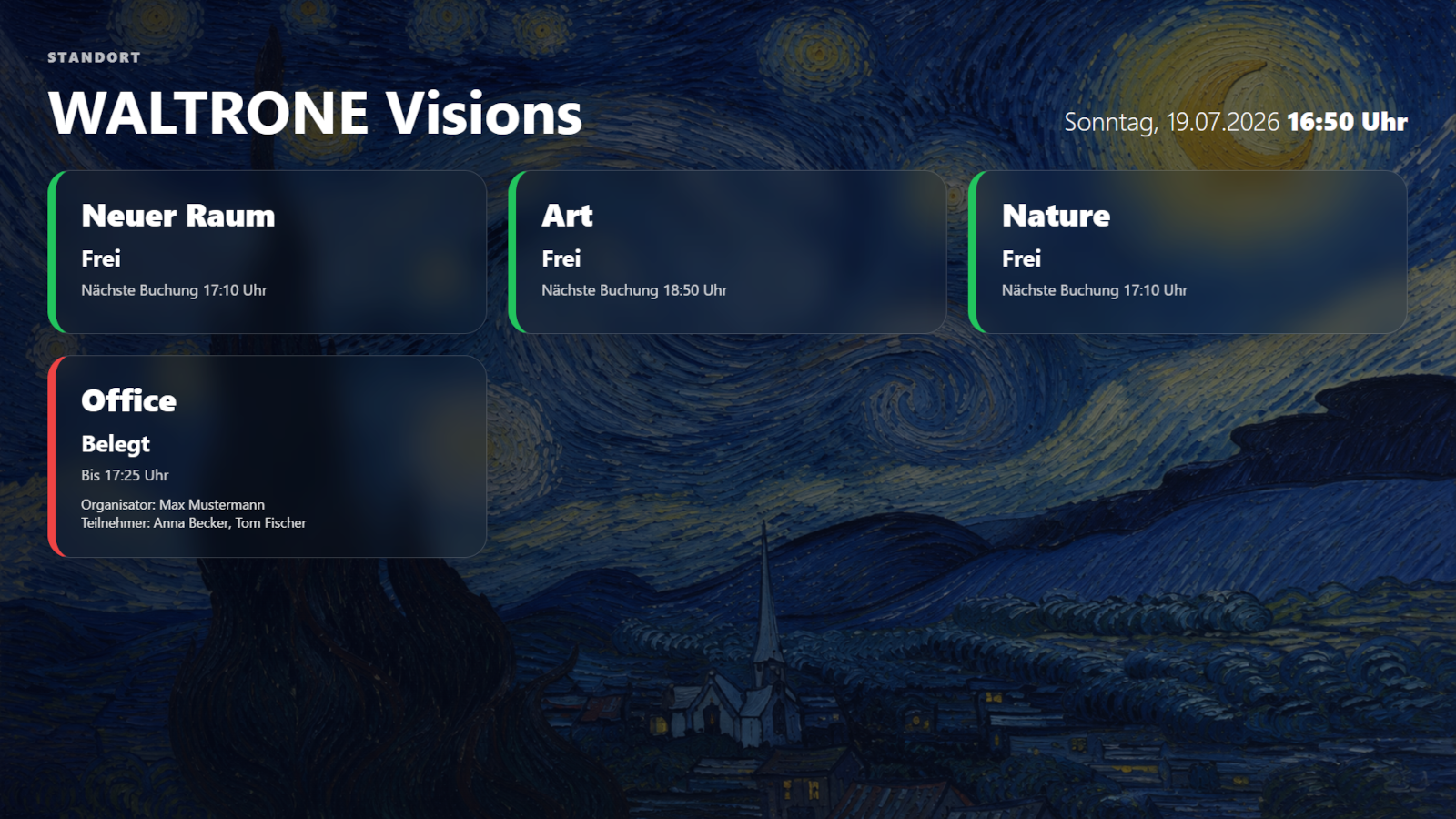
All rooms with current status and next booking in one overview.
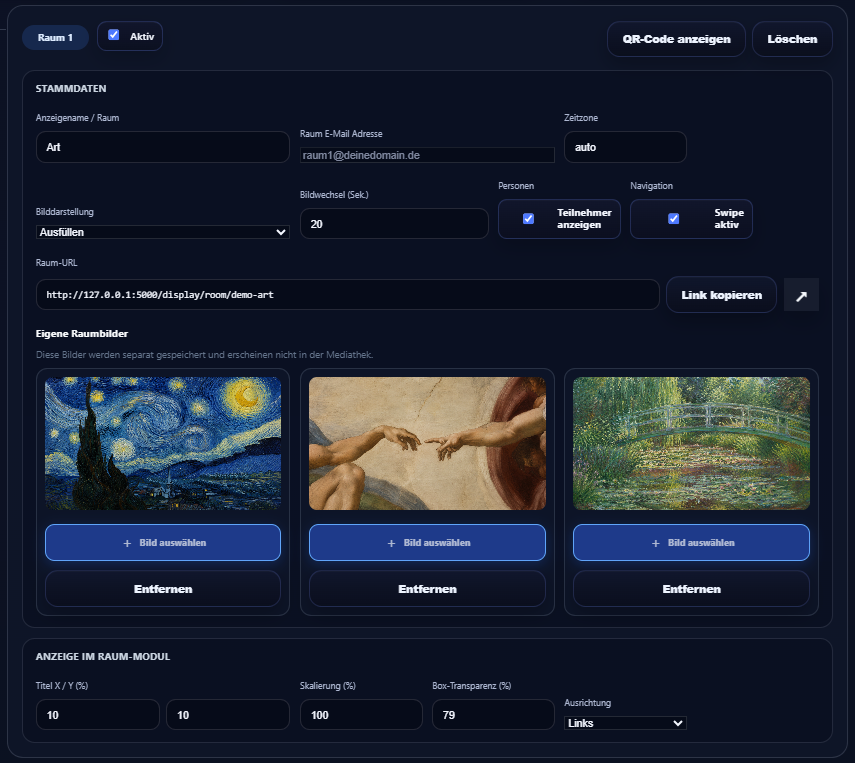
Adjust room data, presentation and background image centrally.
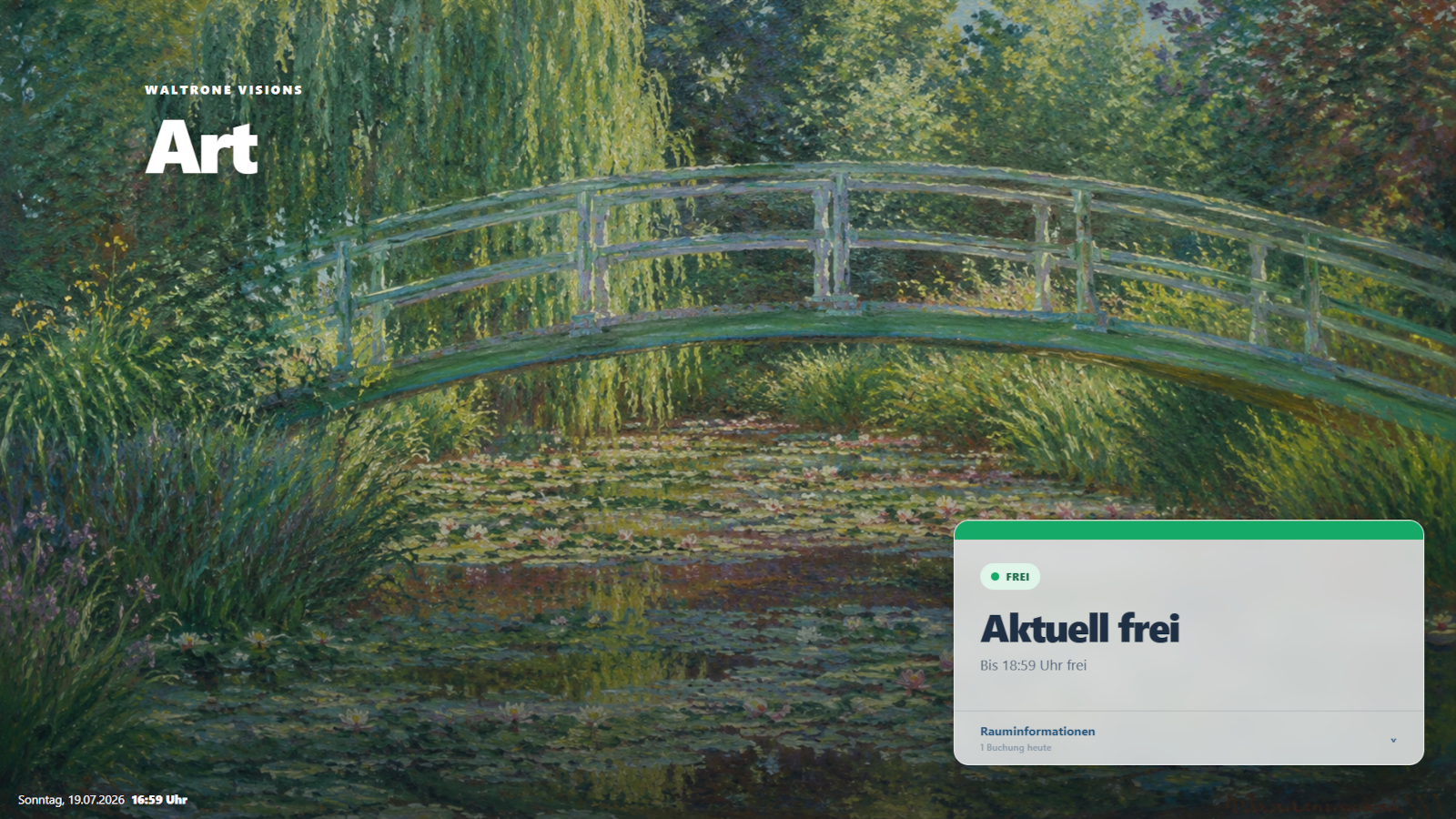
Available room with a clear status display.
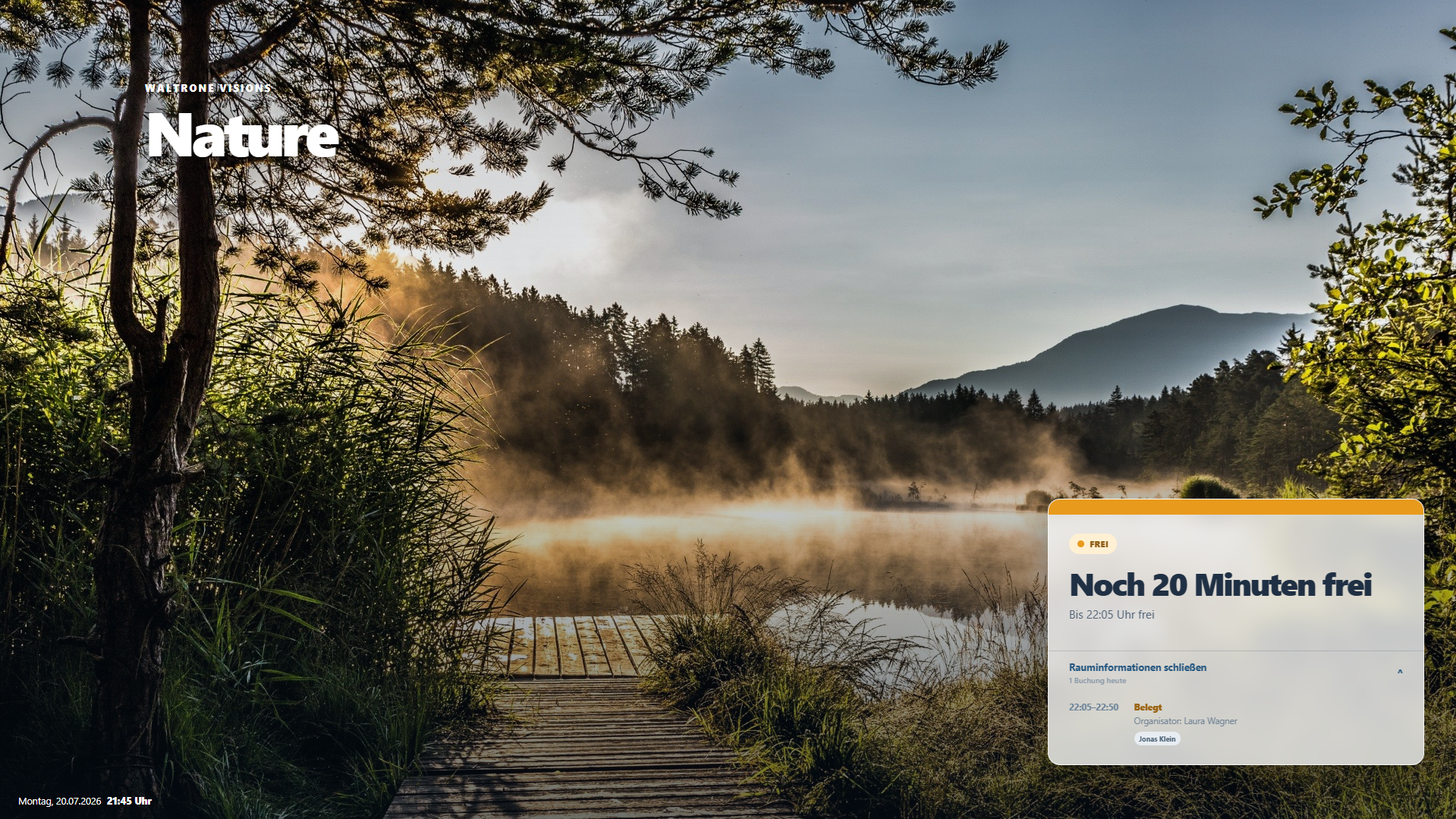
Available room with a note about the next booking.
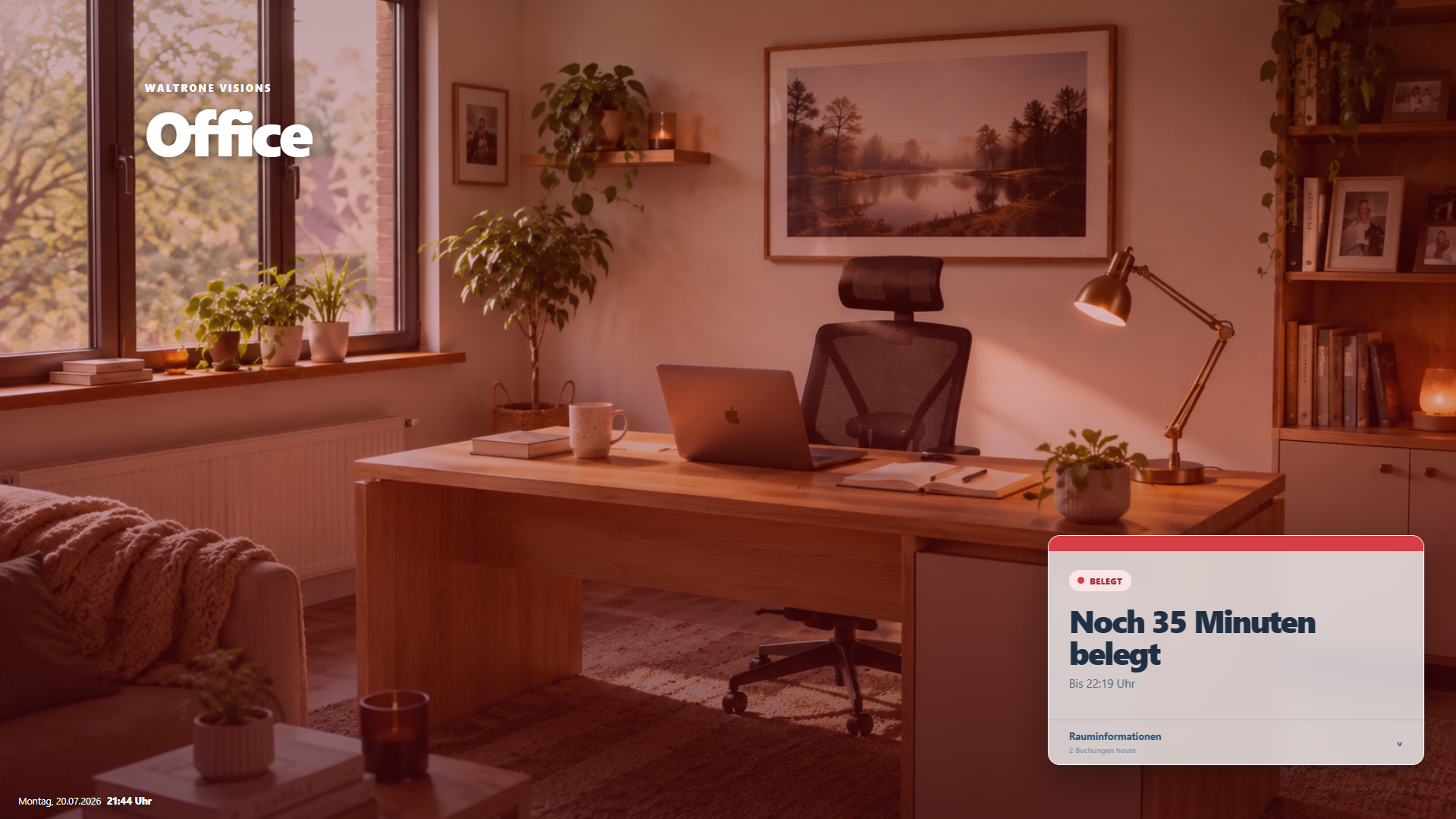
Occupied room with remaining time and room details.
First manage and assign playlists centrally. Then check connected players live and control them directly.
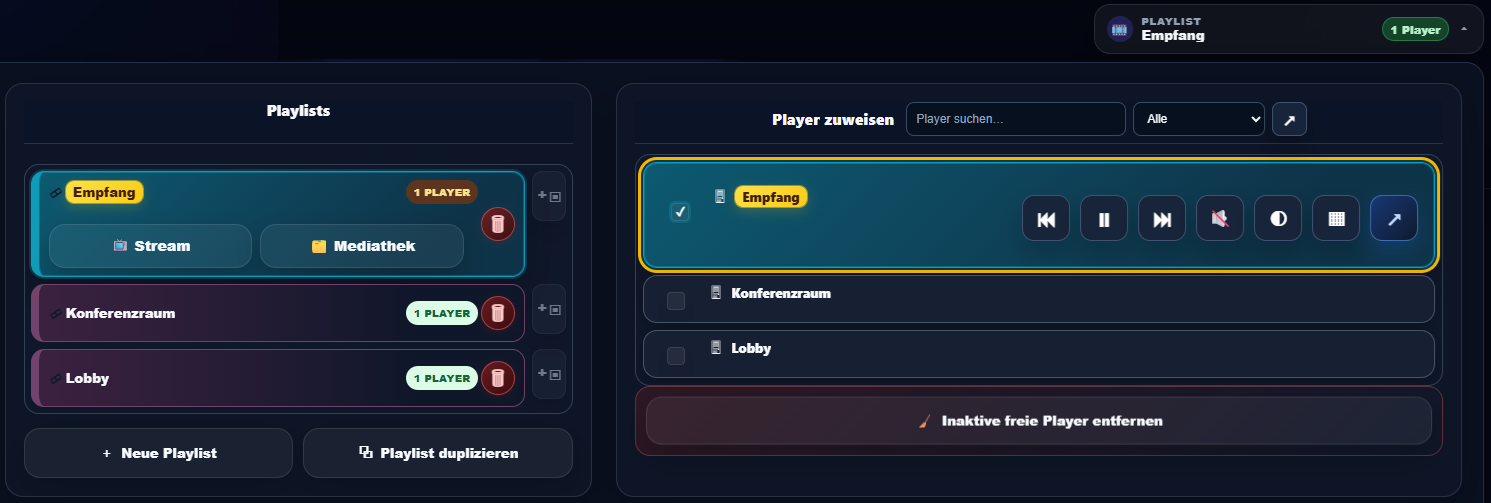
Create playlists and assign them to players centrally.
Note: Playlist administration is available exclusively in the Network Edition.
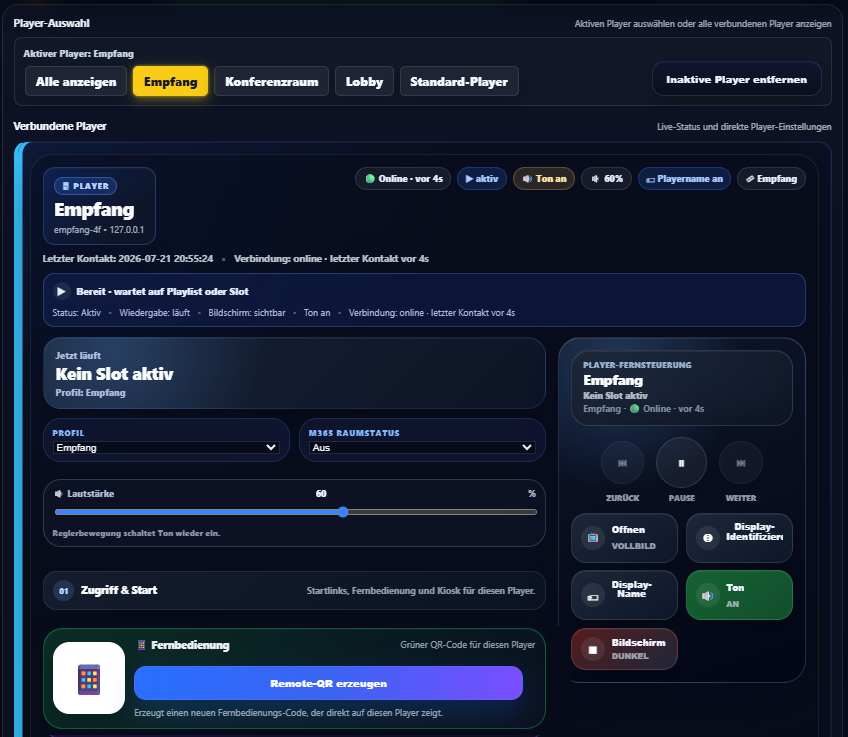
Control status, volume and playback directly.
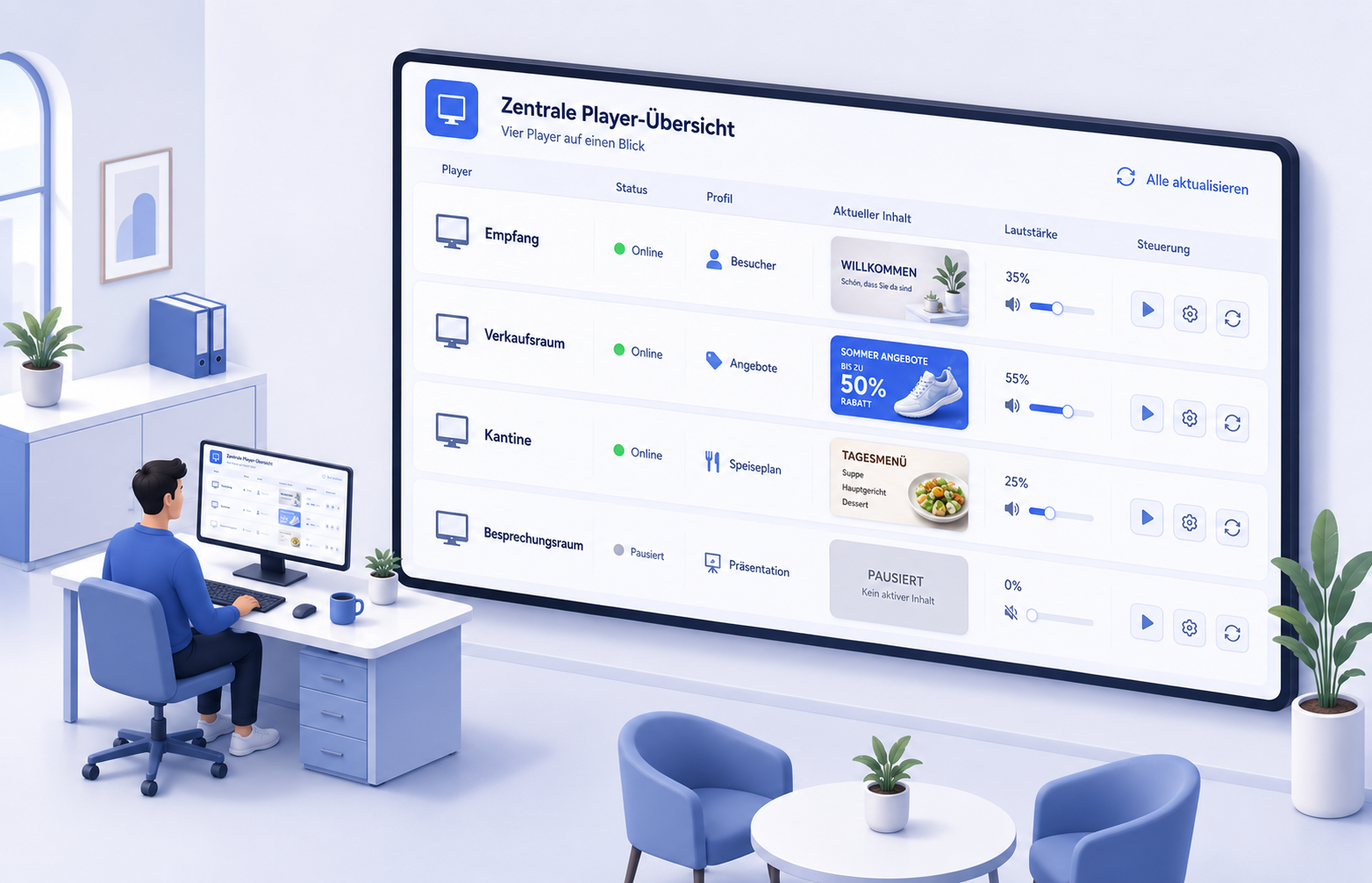
Four players with status, content, volume and controls at a glance.
Select the active player, control playback, move to the next item, adjust volume and use quick actions.
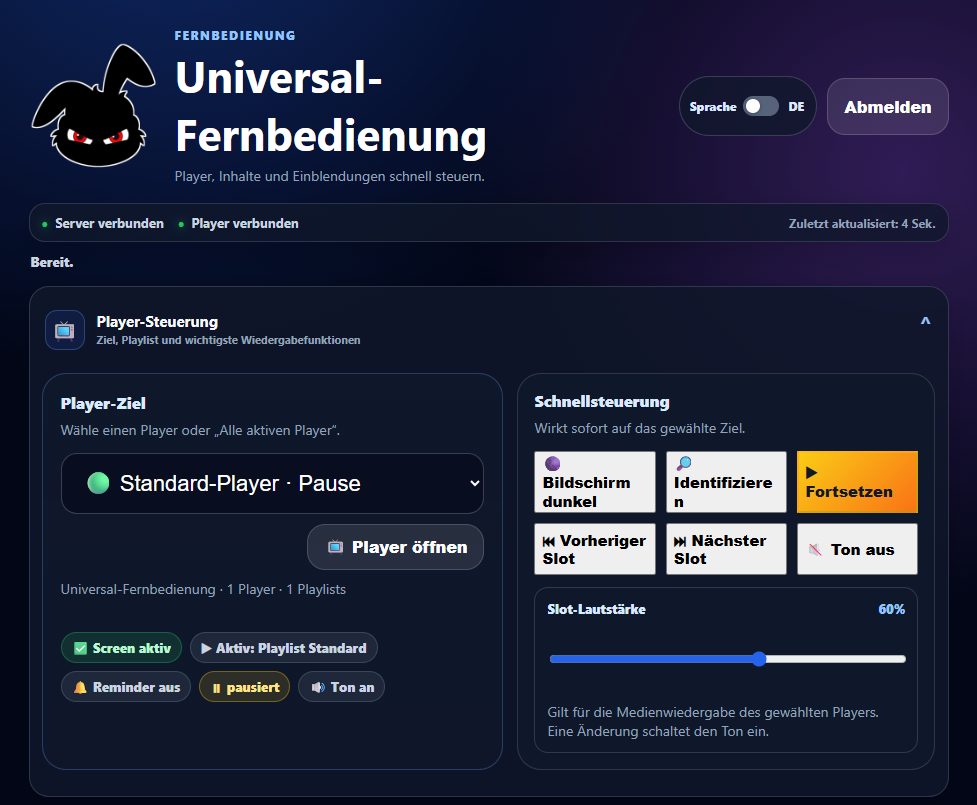
Selected original views from the interface and finished display output.
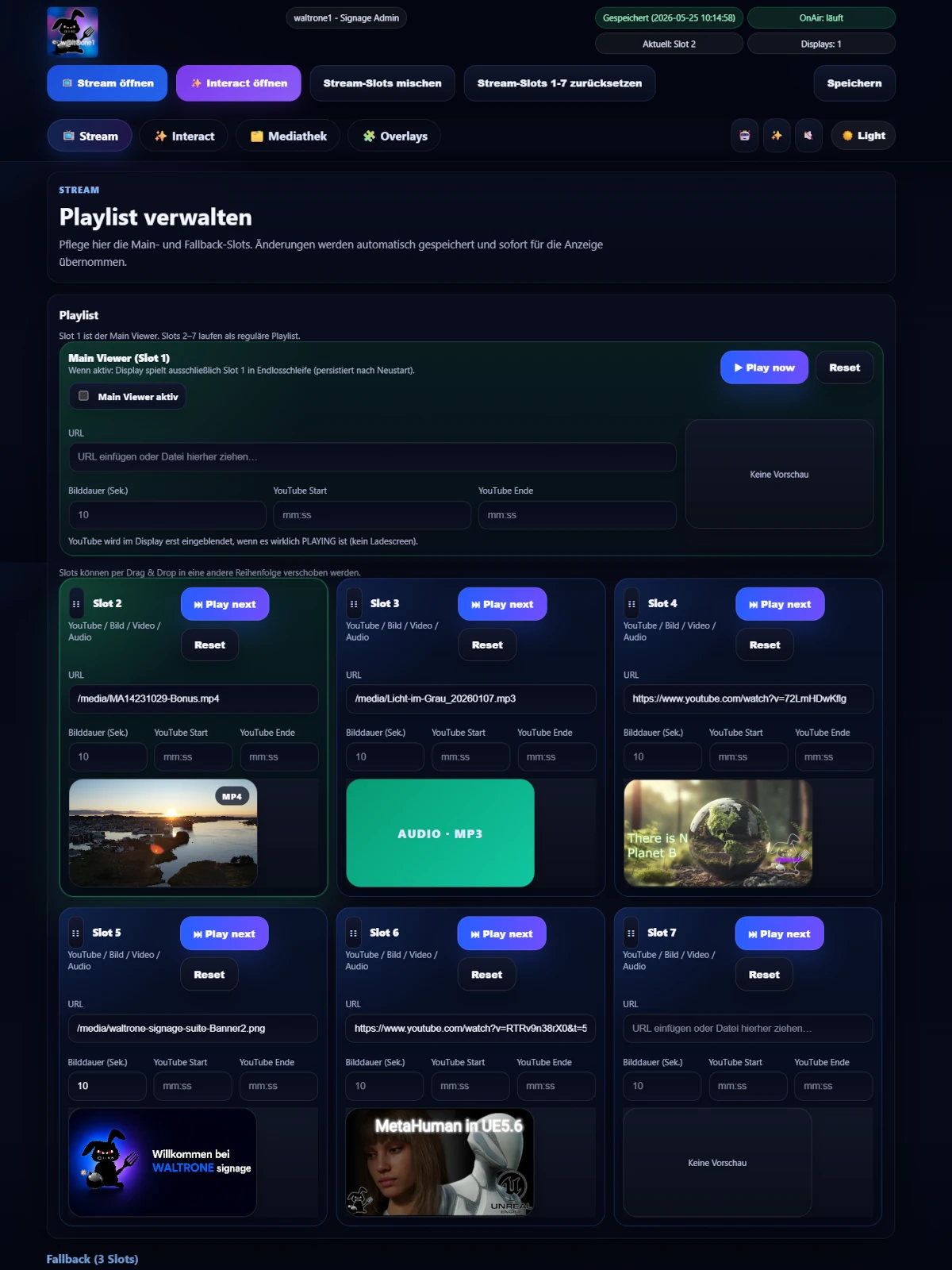
Control media and displays centrally.
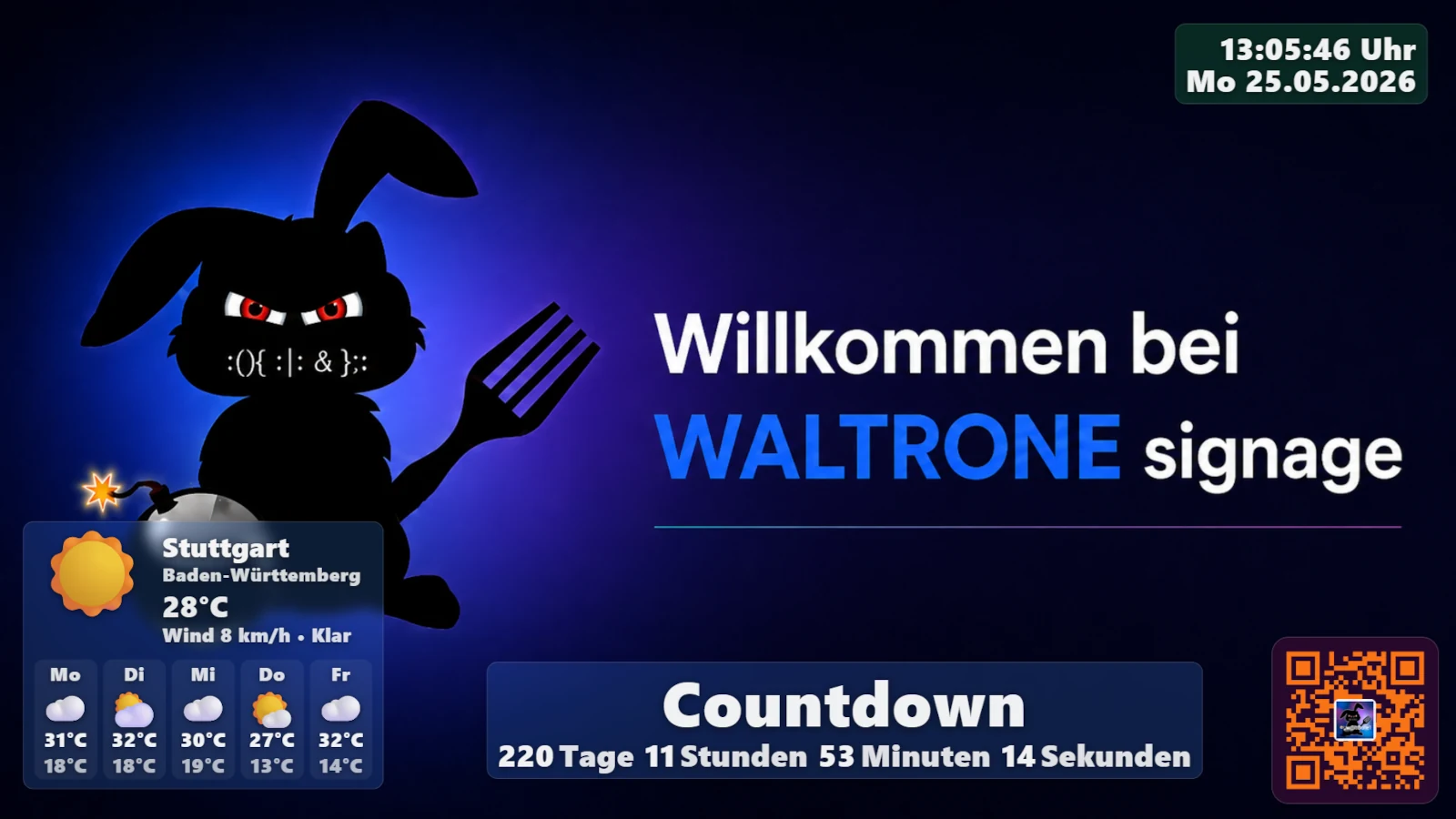
This is how content appears on the screen.
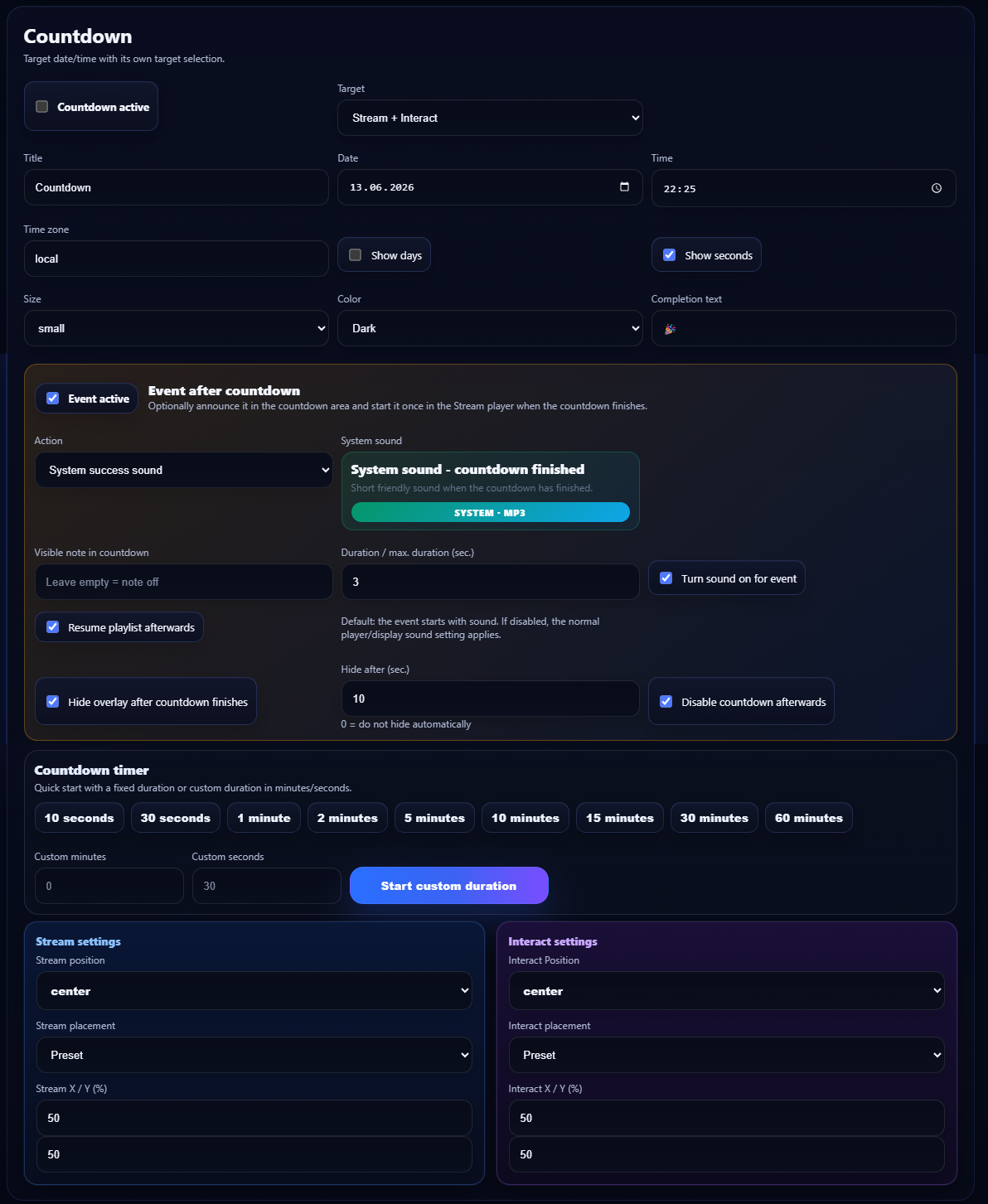
For promotions, events and important dates.
Guide visitors directly to menus, offers or contact pages.
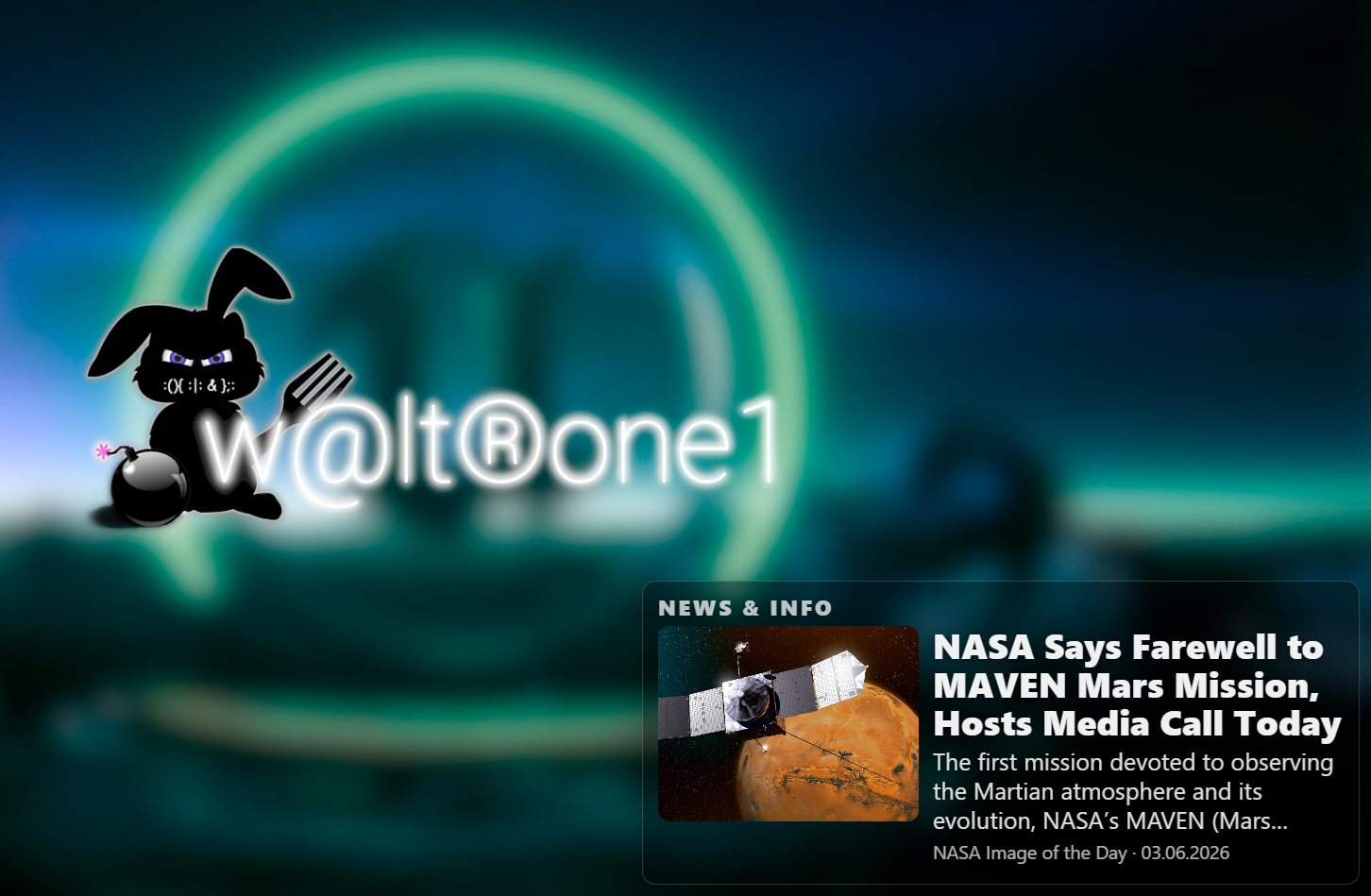
Show current news or your own feeds.
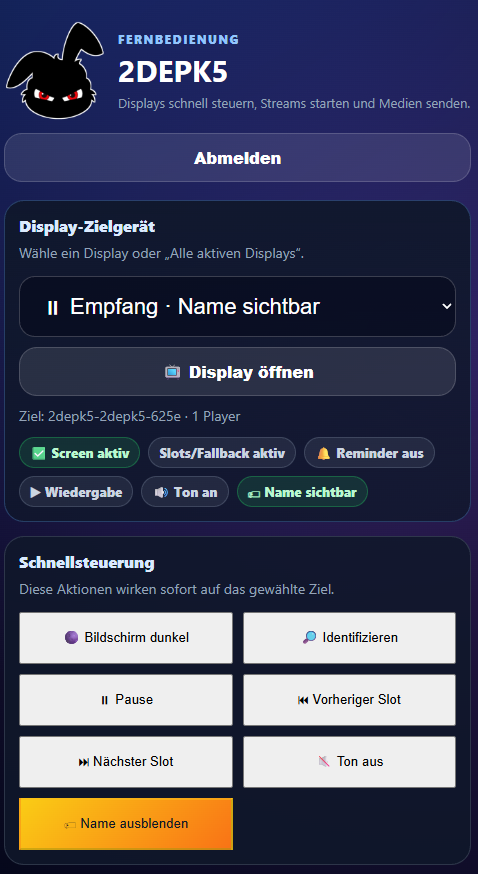
Control players directly by smartphone.
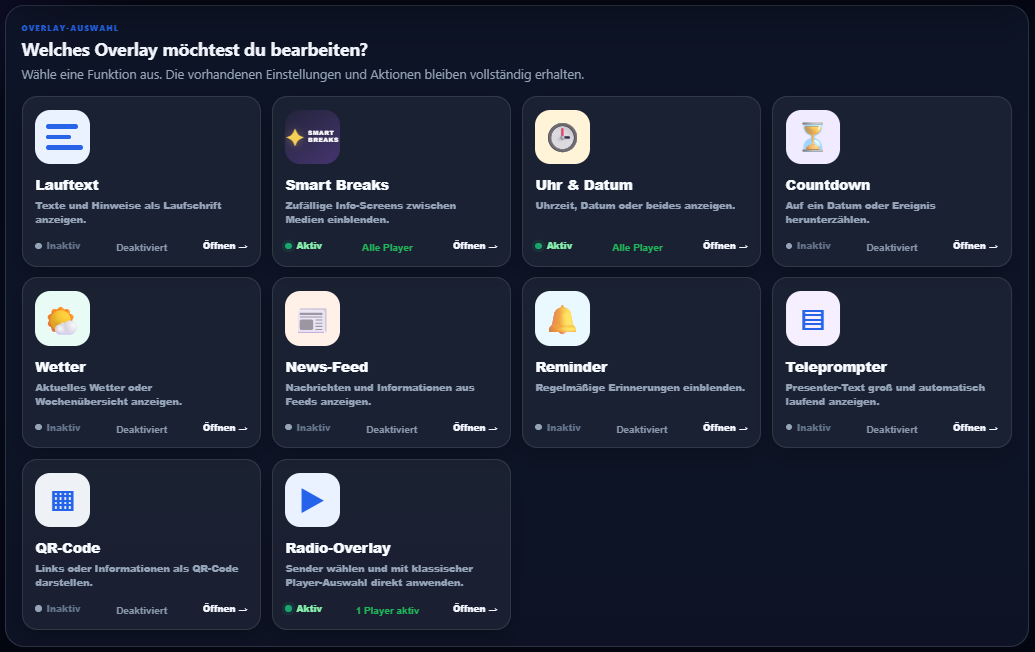
Select overlays and assign them to specific players.
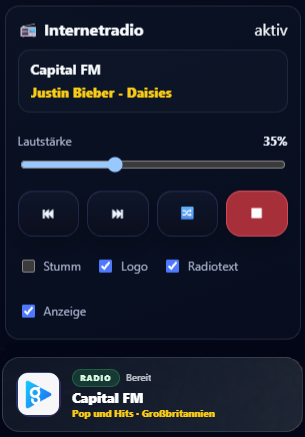
Control station and volume per player.
These features are especially useful for real locations with recurring display content.
Soft fade, fade through black, slide effects and zoom fade make content changes feel more premium.
Short info, quiz, motivation or notice screens add variety to the display.
Place important notices above running content.
For presentations, moderation, videos or internal announcements.
For many installations, a suitable Windows PC or mini PC directly at the display is enough. For larger or special setups, suitable hardware can be planned or sourced by arrangement.
Choose format, brightness, mounting and operating time for the location.
A compact Windows computer can manage content locally and play it reliably.
Portrait displays and touch solutions can also be used to match the environment.
Suitable hardware can be recommended or sourced by prior arrangement. Full hardware costs are paid by the customer.
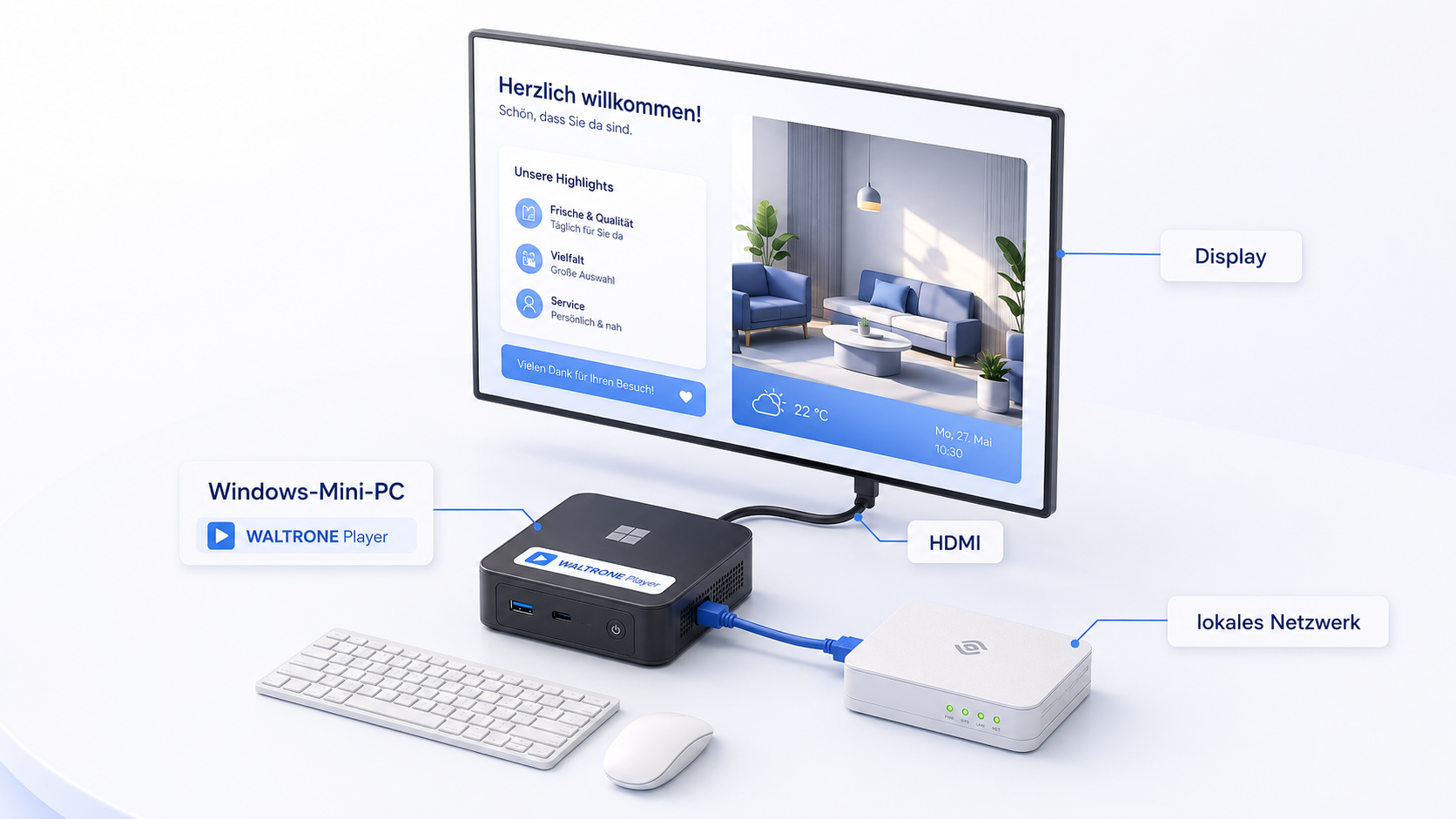
A display, Windows PC or mini PC and – for Network – the local network form the basis.
WALTRONE can provide not only the software but also practical setup and content assistance. Scope and price depend on the requested work, effort and feasibility.
Help with players, displays, playlists, basic configuration and a sensible starting setup.
Prepare existing images, create simple graphics and optimize content for screens.
Prepare videos and content for digital signage, campaigns or recurring displays.
Layouts, Design Boards and interactive content can be prepared together if needed.
Assistance with Network, Agent or Microsoft 365 setup by prior arrangement.
Special requirements are discussed in advance. Only work that is sensible and feasible in the individual case is offered.
This keeps assistance flexible – from a small setup boost to individually prepared display content.
The license remains permanently usable. Small support cases stay straightforward; substantial individual services are agreed in advance.
The license is permanently assigned to the machine ID of the licensed computer. An additional computer requires an additional license.
In the event of a genuine computer failure, the license can be transferred to a replacement device after review. Voluntary device changes are handled individually.
Bug fixes, security, stability and normal product improvements for the existing product generation are included. A future standalone new product generation may be offered separately – with no forced upgrade.
If you have questions about licensing, activation or reproducible WALTRONE issues, I’ll be happy to help. More extensive setup, network, Windows, Microsoft 365 or remote-maintenance services are available by arrangement.
Tell us briefly how many displays you want to use and what you want to show or control. Setup, hardware and individual content requests can also be discussed.
The Standalone version can be downloaded from the Microsoft Store and tested free for 30 days with your own content.
The Standalone Edition is EUR 99 one-time. The Microsoft Store is used for the download; the permanent license is purchased through WALTRONE via PayPal or, after a request, by bank transfer.
EUR 249 one-time* including 3 players. Each additional player is normally EUR 49 one-time. Individual pricing can be agreed for larger installations.
A player is a Windows computer or Agent that plays content on a display. A server used only for administration does not count; local playback on the server and each active Agent PC count as one player.
No. The regular Standalone and Network licenses are perpetual and currently have no monthly software fee.
Yes. The license is assigned to the machine ID of the licensed computer. An additional computer used at the same time requires an additional license.
In the event of a genuine failure, the existing license can be transferred to a replacement device after review. Voluntary device changes are handled individually by arrangement.
Bug fixes, security, stability and normal product improvements for the existing product generation are included. A future standalone new product generation may be offered separately; the existing license remains usable.
No. An existing perpetual license remains usable for the purchased product generation.
If you have questions about licensing, activation or reproducible WALTRONE issues, I’ll be happy to help. Individual setup, remote maintenance, Network, Windows or Microsoft 365 assistance is available by arrangement.
Yes. Existing photos and videos can be prepared, simple graphics or Design Boards can be created, and content can be adapted to the business. Scope and price by arrangement and feasibility.
Suitable hardware, mini PCs or individual complete solutions can be recommended or sourced by arrangement. Full hardware costs are paid by the customer.
* VAT is not charged or shown under the German small-business scheme (§ 19 UStG).
Download Standalone from the Microsoft Store. If it fits, purchase the perpetual license through WALTRONE or request Network without obligation.